Smart Game Booster Review: A Practical Tool or Just Another Optimization Gimmick?
When a game starts acting up, the first reaction for many players is to blame their hardware. But after spending time with Smart Game Booster, I’ve come to realize that the real issue is often not raw power—it’s a lack of visibility into what’s actually happening inside your system.
This isn’t a tool that promises to turn a budget rig into a high-end machine. Instead, it functions more like a dashboard that helps you understand where your performance is going and why. Here’s what that looks like in practice.
Start With the Right Question
Most optimization guides tell you to close background apps and update drivers. That advice isn’t wrong, but it skips a crucial step: identifying what kind of problem you’re dealing with.
Is your frame rate dropping because the GPU is maxed out? Is your input lag caused by network instability? Or is it something simpler, like a scheduled background task eating up CPU cycles?
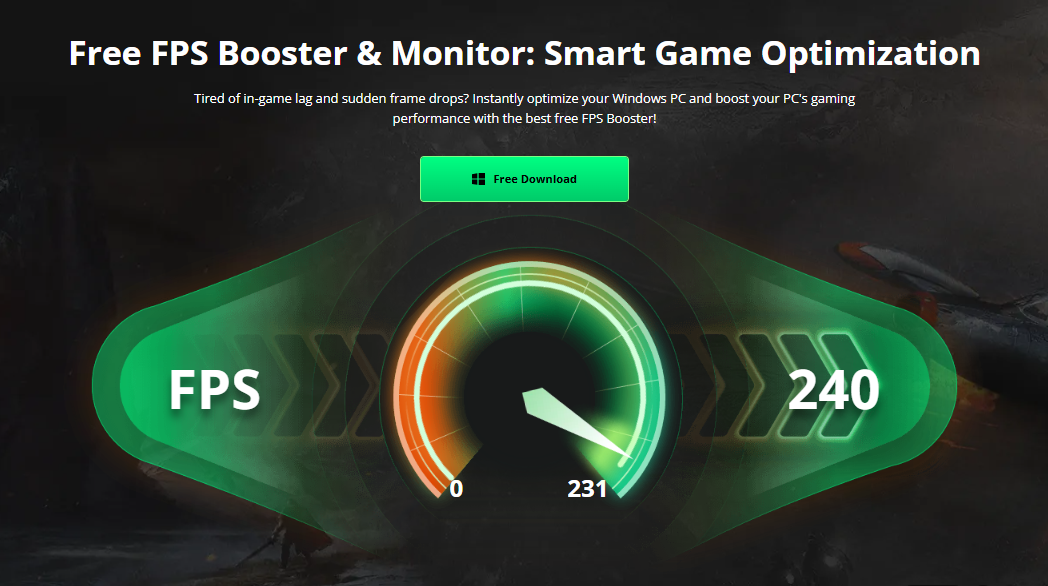
Smart Game Booster doesn’t answer these questions for you automatically, but it gives you the data to answer them yourself. The FPS overlay and ping monitor are the two features I used most, because they turn vague complaints like “it feels choppy” into specific, measurable problems.
What Stands Out in Daily Use
Real-Time Performance Data Without the Clutter
One thing I appreciated is that the FPS counter doesn’t dominate the screen. It’s subtle enough that you forget it’s there, but when you notice a sudden dip, you can glance at it and confirm whether it’s a real drop or just a momentary hitch. That kind of feedback is invaluable when you’re trying to decide whether to lower shadow quality or disable anti-aliasing.
Network Tools That Complement, Not Replace, Good Habits
The network acceleration feature is useful, but it’s not a fix-all. If your Wi-Fi signal is weak or your router is outdated, no software is going to solve that. What Smart Game Booster does well is give you a clearer picture of your connection quality. When ping spikes appear, you can at least rule out local hardware issues before blaming the game servers.
Driver and Background Management Made Simple
I used to manually check for GPU driver updates every few weeks. Now I just let Smart Game Booster handle the reminders. It’s not a dramatic time-saver, but it’s one less thing to think about. The background process manager is similarly straightforward—it shows you what’s running and lets you decide what to close. No automatic killing of processes, which I actually prefer, since some background apps are necessary.
Temperature Tracking for Longer Sessions
If you play for hours at a time, heat buildup is a real concern. The temperature readouts aren’t as detailed as dedicated monitoring tools, but they’re enough to tell you when something is running hotter than it should. In my case, it prompted me to clean out my PC case, which made a bigger difference than any software setting.
Who Should Consider It
This tool makes the most sense for players who:
- Want a single place to check frame rates, ping, drivers, and temperatures without installing multiple utilities.
- Are running mid-range hardware and want to squeeze out more consistency rather than raw performance.
- Prefer making decisions based on data rather than guesswork.
If you’re expecting a one-click solution that doubles your FPS Booster in demanding titles, you’ll be disappointed. No optimization tool can overcome hardware limitations or a poor internet connection.
How to Get Started
Getting up and running is straightforward, even if you’re not particularly tech-savvy.
Step 1: Download From the Official Website
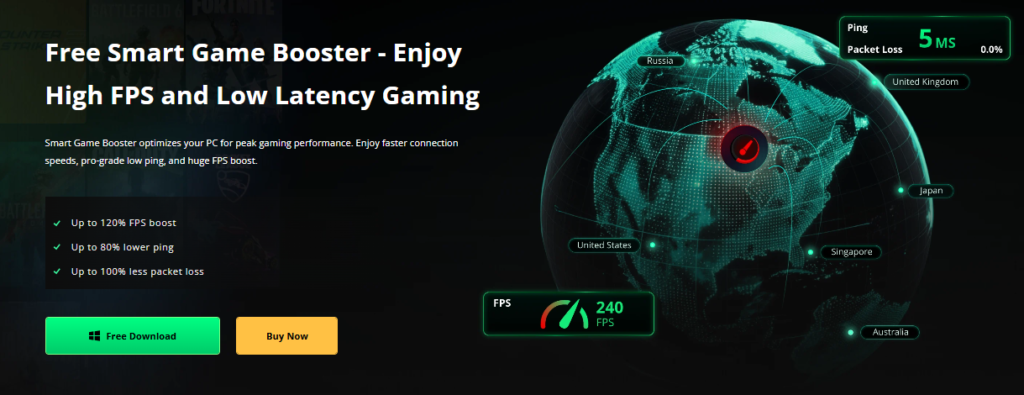
Head to the official Smart Game Booster site and grab the free installer. Stick to the official source to avoid bundled software. The download is lightweight and should finish quickly.
Step 2: Select Your Game
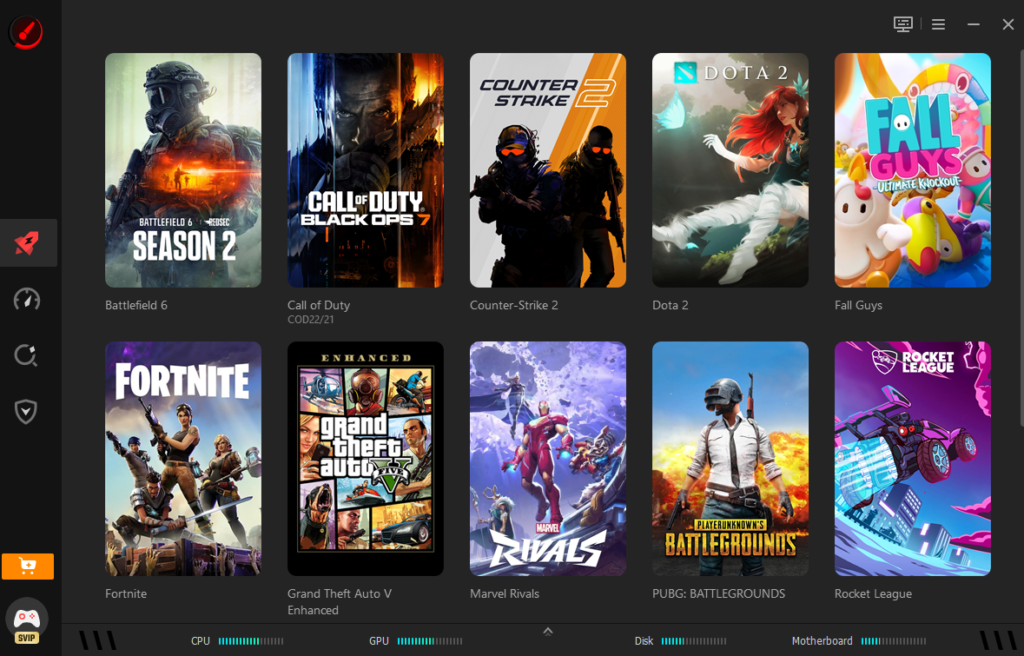
After installation, launch the software and find the game you want to optimize in the game list. If your game doesn’t appear automatically, you can add it manually by pointing the software to its executable file. Make sure you’ve selected the correct title before moving on.
Step 3: Start the Boost and Launch Your Game
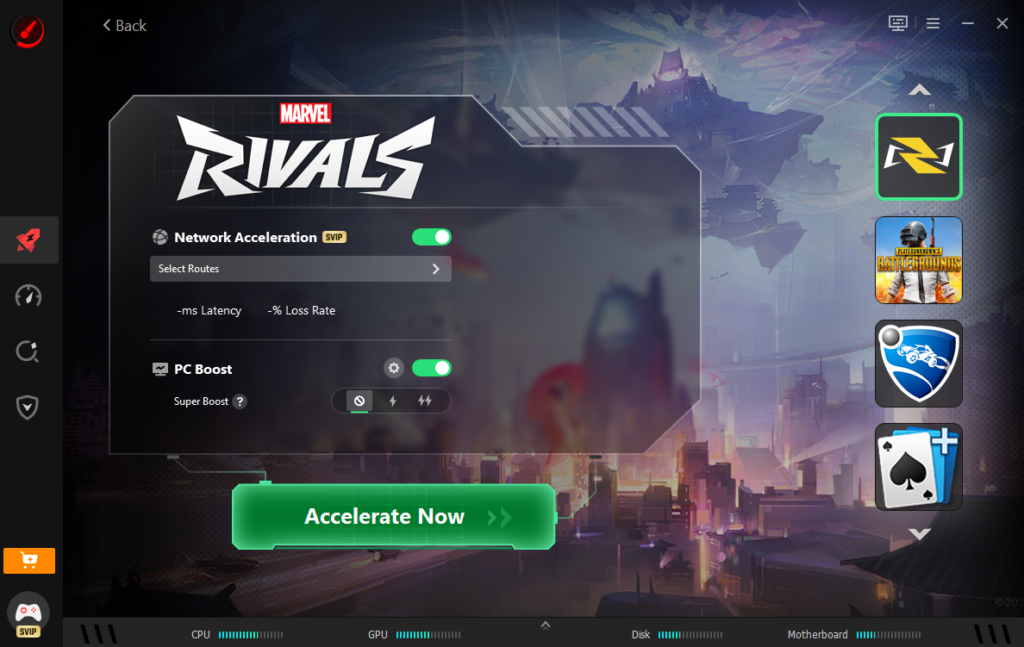
Click the accelerate now button and wait for the optimization to finish. Then launch your game and keep an eye on the FPS and ping readouts to see whether things feel more stable than before.
The free version includes the core features, so you can try everything before deciding whether to upgrade.
Closing Thoughts
Smart Game Booster isn’t a miracle worker, and it doesn’t pretend to be. What it does well is consolidate useful diagnostics into a single interface, helping you make informed decisions about where to focus your optimization efforts. If your problems stem from background clutter, outdated drivers, or a suboptimal network route, it can genuinely help. If the bottleneck is deeper—aging hardware or an unreliable ISP—it at least helps you confirm that, so you can stop chasing the wrong solutions.